The Problem: The Same File, The Same Place, Every Single Day
Some chores are too small to think about and too repetitive to ignore. Mine was this: a file gets updated, and it needs to go to the same folder — sometimes a network share, sometimes an FTP server — every time, with no variation in the steps. Open the file explorer, navigate, drag, wait, confirm overwrite, close. A minute of clicking for zero minutes of actual decision-making.
There are proper sync tools for this — rsync, FTP clients with watch folders, scheduled tasks. All of them were more setup than the problem justified, and most assumed I wanted continuous syncing rather than "copy this one file, right now, when I press a button."
So the shape of the fix was obvious before any code existed: one button, one pre-chosen source, one pre-chosen destination. Everything else — profiles, FTP support, action modes — got added because the first version immediately showed where a single hardcoded path fell short.
What It Does
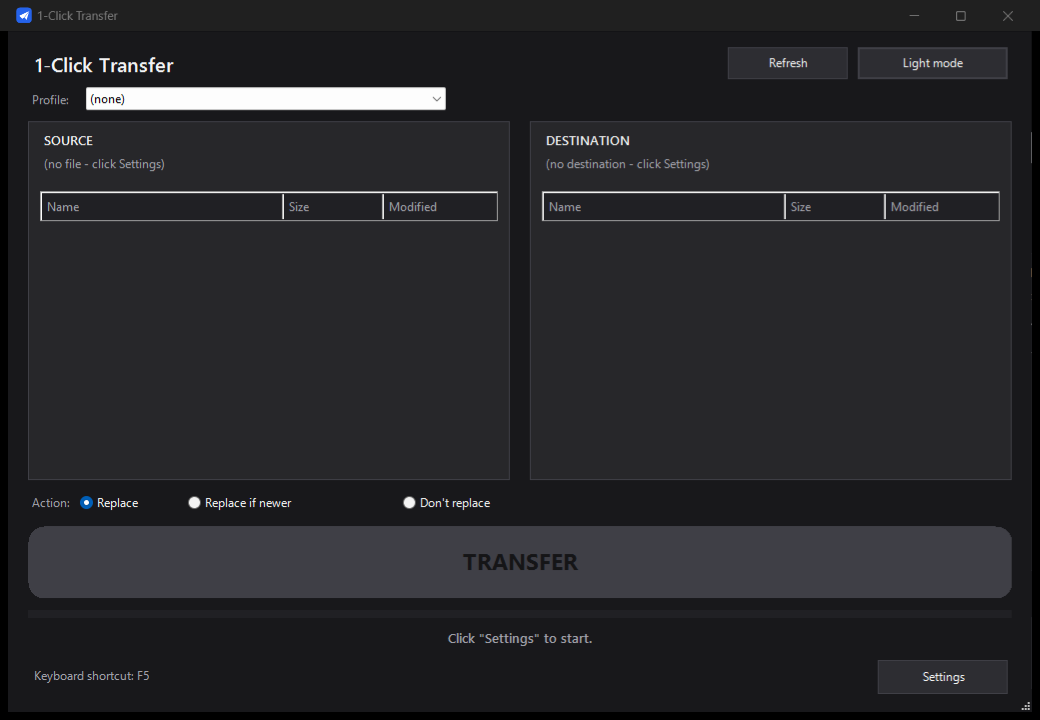
A dark-mode WinForms window opens, source and destination panels list their files, and one big TRANSFER button does the copy — to a local/network folder or straight to an FTP/FTPS server.
settings.json lives next to the .exe — no installer, no registry, copy the folder anywhere.No installation step exists because there's nothing to install: unzip the release, run 1clickTransfer.exe, done. Windows SmartScreen will flag it on first run since it isn't code-signed — the usual "More info → Run anyway," and the full source is public to check.
Why PowerShell + WinForms
The obvious modern choice for a small Windows utility is a .NET app, maybe with WPF or MAUI for the UI. I went a level more minimal: PowerShell driving WinForms directly, compiled to a single .exe with PS2EXE.
The reasoning was about the runtime, not the language. Windows PowerShell 5.1 ships built into every Windows 10/11 install — there's nothing to download, nothing to check the version of, nothing that can be "not installed" on the machine this needs to run on. WinForms gives a real, native, resizable window without pulling in a heavier UI framework for what's fundamentally two panels and a button.
The tradeoff is real: PowerShell's WinForms bindings are clunkier to write than C# and the startup is a hair slower than a compiled .NET binary. For an app whose entire job is "click once, wait a second, done," that tradeoff was worth it for zero-dependency portability.
One Button, Two Kinds of Destination
The TRANSFER button doesn't know or care whether the destination is a folder or a server — that distinction lives entirely in the profile, resolved once when the profile is selected. A local/network destination is a straightforward file copy with overwrite handling; an FTP/FTPS destination opens a connection, authenticates, and uploads the file to the browsed remote path.
The three action modes apply the same way to both destination types: Replace always overwrites, Replace if newer compares timestamps and skips the copy if the destination file is already current, and Don't replace refuses if a file already exists at the destination — useful for one-way archival transfers where an overwrite would be a mistake.
Keeping this logic behind one abstraction meant the UI never needed a "which kind of transfer is this" branch anywhere except in the profile editor — the transfer button, the keyboard shortcut, and the status messages all stayed identical regardless of destination type.
Encrypting the FTP Password with DPAPI
An FTP profile needs to store a password somewhere, and settings.json sitting in plain text next to the .exe is not where a password should live. The fix didn't need a third-party library or a master password to manage — Windows already ships exactly the right tool: the Data Protection API (DPAPI), available from .NET's System.Security.Cryptography.ProtectedData.
DPAPI encrypts a blob of data using a key derived from the logged-in Windows user's credentials, with no key file to manage or lose. The encrypted bytes are only decryptable by that same Windows user account on that same machine — so the password in settings.json is useless if the file is copied elsewhere or read by another user.
# Encrypt (saving a profile)
Add-Type -AssemblyName System.Security
$bytes = [System.Text.Encoding]::UTF8.GetBytes($plainPassword)
$encrypted = [System.Security.Cryptography.ProtectedData]::Protect(
  $bytes, $null, [System.Security.Cryptography.DataProtectionScope]::CurrentUser
)
$profile.ftpPasswordEncrypted = [Convert]::ToBase64String($encrypted)

# Decrypt (loading a profile to connect)
$encrypted = [Convert]::FromBase64String($profile.ftpPasswordEncrypted)
$bytes = [System.Security.Cryptography.ProtectedData]::Unprotect(
  $encrypted, $null, [System.Security.Cryptography.DataProtectionScope]::CurrentUser
)
$plainPassword = [System.Text.Encoding]::UTF8.GetString($bytes)
Because the scope is CurrentUser rather than LocalMachine, a copy of the whole app folder — settings and all — doesn't leak the password to whoever it's shared with, or even to another account on the same PC. That was the whole requirement, solved with an API that's been in Windows since 2000.
Profiles: Switching Source and Destination in One Click
One profile was never going to be enough — different files go to different places, and switching between them shouldn't mean reconfiguring the app each time. Profiles bundle a source path, a destination (folder or FTP, including the encrypted credentials for the latter), and an action mode into one saved unit, picked from a dropdown on the home screen.
Selecting a profile re-populates the source and destination panels immediately — the file lists refresh, the FTP browser reconnects if needed, and the TRANSFER button is live again with the new context, all without leaving the main window.
The profile list itself lives in the same portable settings.json as everything else, so moving the app to another machine or restoring from a backup carries every saved profile along with it — encrypted passwords included, though those specifically only decrypt again under the same Windows user account.
Built with Claude
Same as every other project on this site: I didn't write this code alone. I described the chore, described what a fix should feel like — one button, remembers what I always do — and built it with Claude, testing each version against real folders and a real FTP server until the edge cases (a locked destination file, a dropped FTP connection mid-upload, a profile with no destination set yet) stopped surprising me.
This one started smaller than most of my projects and grew through actual daily use rather than an upfront feature list. Profiles, action modes, and the FTP browser all got added after the single-hardcoded-path version ran into a wall within the first week of using it for real.
The DPAPI decision is a good example of the working style: I knew a password shouldn't sit in plain text, I didn't know DPAPI existed, and the conversation that found it took about as long as writing this sentence did.
Credits, License & Result
1-Click Transfer is a free, open source Windows app built with PowerShell, WinForms, and PS2EXE for the .exe packaging, written in collaboration with Claude. Licensed under the MIT License.
It's the app I wanted from the start: no install, no runtime to check, one button that does exactly the same thing every time, and a password that stays safe even if the whole folder gets copied somewhere it shouldn't.
Download, source, and the full feature list: github.com/samaBR85/1clicktransfer — MIT, free.