The Problem: One Click in Windows Settings, Every Single Day
As a video editor who reviews audio mixes, switching between stereo and mono is something that happens dozens of times a day. Windows has a built-in mono audio toggle — it's in Accessibility Settings, buried three clicks deep. Every time you want to check how your mix sounds in mono (which is essential for broadcast and podcast delivery), you navigate to Settings → Accessibility → Audio → Mono Audio. Then you switch back to stereo. Then mono again. Multiply by thirty times a day.
The fix was obvious: a keyboard shortcut. The implementation required Claude Code to go somewhere it had never been — a native Windows desktop application in C#.
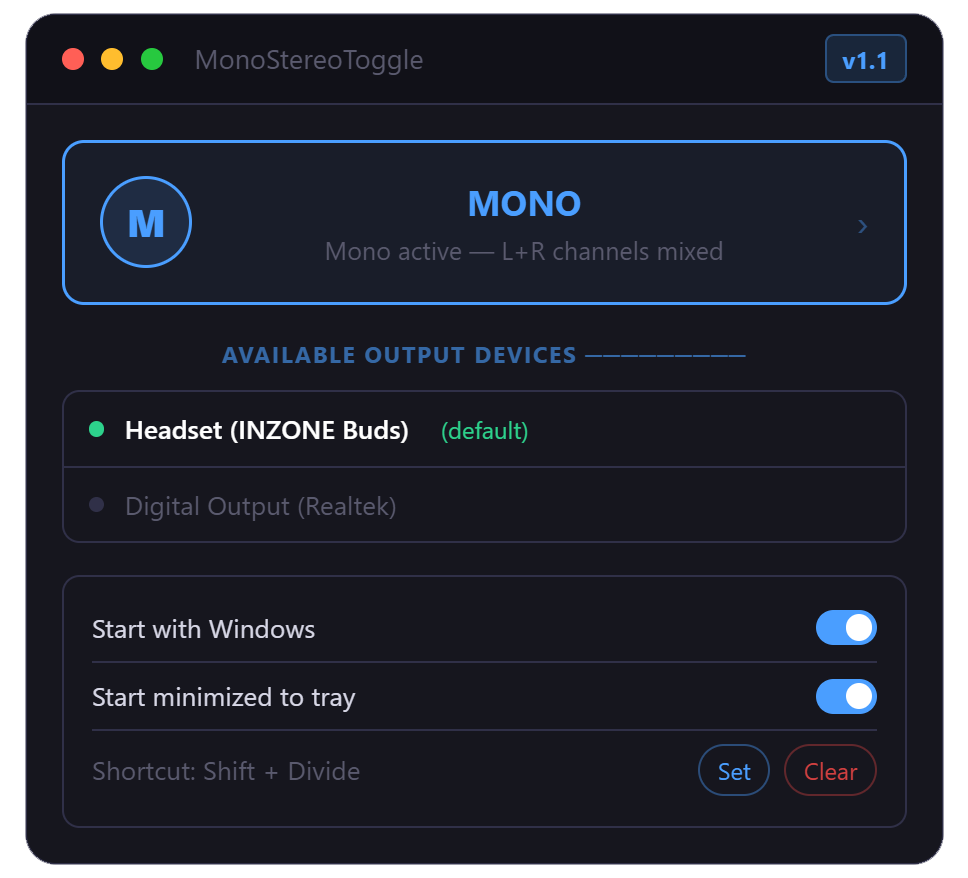
The result was MonoStereoToggle: a system tray utility that toggles Windows mono/stereo audio with a single customizable keyboard shortcut. No UI to open, no windows to close. Just press the hotkey, the tray icon updates, a toast notification confirms the change, and you're back to editing.
Why C# and Not Another Electron App?
The BeatMarker plugins are built with JavaScript — web technologies running inside Adobe's plugin runtimes. Why not build MonoStereoToggle as an Electron app or a web-based utility? Two reasons.
First, global hotkeys. Registering a keyboard shortcut that works regardless of which application is focused requires Windows API calls — specifically RegisterHotKey() from user32.dll. Electron can call native code, but the plumbing is awkward. C# makes it straightforward.
Second, the audio API. Toggling the Windows mono audio setting requires the Windows Core Audio COM API — specifically the IMMDeviceEnumerator and the IAccessibilityServiceHandler interfaces that control accessibility audio settings. These are native Windows APIs that are directly accessible from C# via P/Invoke and COM interop, with no intermediary required.
The stack: C# 12 + .NET 8 + WinForms. WinForms might seem like a dated choice in 2026, but for a system tray utility with no UI beyond a tray icon and a context menu, it's the right tool: fast startup, tiny executable, full Windows API access, no framework overhead.
Global Hotkeys: RegisterHotKey and the Message Loop
Windows global hotkeys work through the Win32 message loop. When you register a hotkey with RegisterHotKey(), the operating system sends a WM_HOTKEY message to your application's window procedure whenever that key combination is pressed — even if a different application has focus.
// P/Invoke declarations for Win32 hotkey API
[DllImport("user32.dll")]
static extern bool RegisterHotKey(IntPtr hWnd, int id, uint fsModifiers, uint vk);

[DllImport("user32.dll")]
static extern bool UnregisterHotKey(IntPtr hWnd, int id);

const int HOTKEY_ID = 1;
const uint MOD_CTRL = 0x0002;
const uint MOD_ALT  = 0x0001;

// Register Ctrl+Alt+M as the default hotkey
RegisterHotKey(this.Handle, HOTKEY_ID, MOD_CTRL | MOD_ALT, (uint)Keys.M);

// Handle the hotkey in WndProc
protected override void WndProc(ref Message m) {
  const int WM_HOTKEY = 0x0312;
  if (m.Msg == WM_HOTKEY && m.WParam.ToInt32() == HOTKEY_ID) {
    ToggleMonoStereo();
  }
  base.WndProc(ref m);
}
The hotkey is configurable. The user can right-click the tray icon, choose "Set Shortcut," press any key combination, and the new binding is saved to a settings file and re-registered. If another application has already claimed the same hotkey combination, Windows returns false from RegisterHotKey and the app shows an error.
Toggling Mono: The Windows Accessibility API
The Windows mono audio setting lives in the Accessibility APIs — the same ones that power screen readers and other assistive technology. To read and write it programmatically, Claude Code had to interface with the Windows Core Audio COM interfaces.
The key insight: the mono/stereo setting is per-device and stored as an audio endpoint property. Claude Code accesses it via the IMMDeviceEnumerator COM interface to enumerate audio endpoints, then reads/writes the accessibility property:
// Toggle mono audio for the default audio output device
void ToggleMonoStereo() {
  bool currentlyMono = IsMonoEnabled();
  SetMonoAudio(!currentlyMono);
  UpdateTrayIcon(!currentlyMono);
  ShowNotification(!currentlyMono ? "Mono" : "Stereo");
}

// Reading the current state
bool IsMonoEnabled() {
  // Query Windows Audio Accessibility settings
  // Returns true if mono mixing is enabled for the default endpoint
  using var key = Registry.CurrentUser.OpenSubKey(
    @"Software\Microsoft\Multimedia\Audio");
  return key?.GetValue("EnableMonoMixing") is int val && val == 1;
}

// Writing the new state
void SetMonoAudio(bool enable) {
  using var key = Registry.CurrentUser.CreateSubKey(
    @"Software\Microsoft\Multimedia\Audio");
  key.SetValue("EnableMonoMixing", enable ? 1 : 0, RegistryValueKind.DWord);

  // Notify the audio system of the change
  SendMessageTimeout(HWND_BROADCAST, WM_SETTINGCHANGE, 0,
    "ImmersiveColorSet", SMTO_ABORTIFHUNG, 5000, out _);
}HKCU\Software\Microsoft\Multimedia\Audio requires no admin elevation — it's in the current user's hive. The change needs to be broadcast to the system via WM_SETTINGCHANGE to take effect immediately without a reboot.
Admin Elevation: Asking Once, Never Again
MonoStereoToggle requests administrator privileges on first launch. Not because the audio toggle requires it — that's in HKCU, no elevation needed. Elevation is needed for the optional startup integration: adding the app to the Windows startup registry key (HKLM\SOFTWARE\Microsoft\Windows\CurrentVersion\Run) requires writing to HKLM, which requires admin rights.
The application manifest requests elevation:
<!-- app.manifest -->
<requestedExecutionLevel
  level="requireAdministrator"
  uiAccess="false" />
Windows shows the UAC prompt once on first launch. After that, the app remembers the startup preference and doesn't prompt again. For a system tray utility that users want to set-and-forget, this is the right trade-off: one prompt on setup, zero friction after that.
The System Tray: Persistent, Minimal, Informative
The system tray icon serves two purposes: it shows the current audio state at a glance (different icons for mono vs. stereo), and it provides a right-click context menu for configuration. The app has no main window — the tray is the entire UI.
// System tray setup with WinForms NotifyIcon
var trayIcon = new NotifyIcon {
  Icon = GetIconForCurrentState(),
  Visible = true,
  Text = "MonoStereoToggle"
};

var contextMenu = new ContextMenuStrip();
contextMenu.Items.Add("Toggle Mono/Stereo", null, (s, e) => ToggleMonoStereo());
contextMenu.Items.Add("Set Shortcut...",     null, (s, e) => ShowHotkeyDialog());
contextMenu.Items.Add("Start with Windows",  null, (s, e) => ToggleStartup());
contextMenu.Items.Add(new ToolStripSeparator());
contextMenu.Items.Add("Exit", null, (s, e) => Application.Exit());

trayIcon.ContextMenuStrip = contextMenu;
trayIcon.DoubleClick += (s, e) => ToggleMonoStereo();
When the state changes — either via hotkey or via the context menu — a Windows toast notification briefly appears: "Mono" or "Stereo" with a corresponding icon. This gives the user immediate visual feedback even when the tray is hidden behind other system tray icons.
Packaging: One .exe, No Installation
The goal was a single executable that runs without installation. .NET 8 supports self-contained, single-file publishing — the entire runtime is bundled into one .exe. The resulting file is around 12–15 MB, but it requires no .NET installation on the target machine.
dotnet publish -c Release \
  -r win-x64 \
  --self-contained true \
  -p:PublishSingleFile=true \
  -p:EnableCompressionInSingleFile=true \
  -p:DebugType=none
The compression flag reduces the file size significantly. DebugType=none strips debug symbols that would otherwise add several megabytes. The result: a single file that a user downloads, double-clicks, approves the UAC prompt, and the utility is running in their tray immediately.
What Claude Code Learned About Windows Development
Building a native Windows utility was a different experience from JavaScript plugin development. The strengths:
- Direct API access — P/Invoke and COM interop give you the full Win32 surface without third-party wrappers
- Startup performance — .NET 8 apps start noticeably faster than Electron; for a tray utility, this matters
- Native feel — system tray, context menus, toast notifications all behave exactly as Windows users expect
The surprises:
- WM_SETTINGCHANGE must be broadcast — writing the registry key alone doesn't apply the audio change; the system needs to be notified
- Single-file publishing compresses well — enabling compression brought the file from ~80 MB to ~15 MB
- App manifest matters — without explicit DPI awareness in the manifest, tray icons appear blurry on high-DPI displays
The Result
MonoStereoToggle is a single .exe, about 15 MB, that runs on Windows 11, requires no installation, and lets you toggle mono/stereo audio with any keyboard shortcut you choose. It runs in the system tray, shows the current state at a glance, and optionally starts with Windows.
It was built with Claude Code by a video editor who had never written C# before. The entire development — architecture, COM interface research, P/Invoke signatures, packaging — was done through conversation with an AI. That's the recurring theme across all these tools: the technical barrier to building useful software drops dramatically when the implementation is handled by Claude Code and the direction is handled by the person who actually has the problem.
Download and source: github.com/samaBR85/MonoStereoToggle — MIT license, free.